A sample editor for chopping, slicing, and looping
The expanded player in SampleStack is a sample editor. Zoom into a stereo waveform, chop a loop at its transients, crop a one-shot, fade out a click, or make a sustained sample loop cleanly. Every edit is staged until you save, and Discard puts the file back as it was.
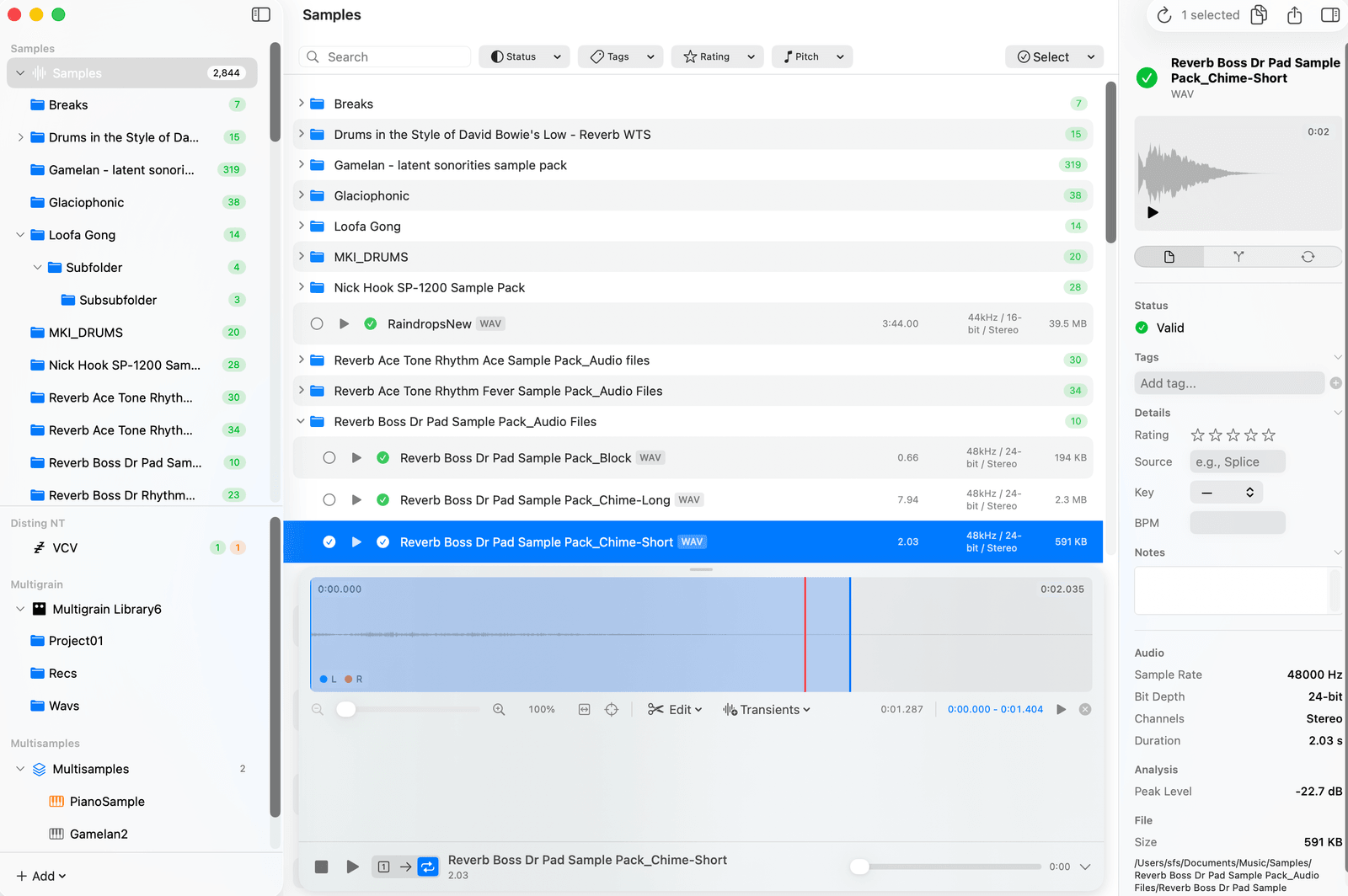
Slice and chop at transients
Detect Transients places a cue point at every hit in a loop, at low, medium, or high sensitivity. Low finds only strong hits, which suits a drum break you want in bars or beats. High finds subtle changes, which suits chopping a vocal phrase or a melodic loop into short pieces.
You can also place cue points by hand: Option-click the waveform, or use Splice at Playhead and Splice Selection. Drag a marker to move it, double-click a slice to name it, and play any slice on its own from the slice list.
Cue points are saved inside the WAV file, so hardware that reads them, like the Morphagene and the Erica Sample Drum, sees the same slices you made. Cue points, splice markers, and slices covers which devices read them.
Cut, crop, split, and extract
Select a region and crop to it, cut it out, or split the file at the playhead into two files. New Sample via Copy pulls a selection out into its own file and leaves the original alone, which is the quick way to turn one long recording into a folder of one-shots.
With a detected tempo, a beat grid sits over the waveform and selections snap to it.
Fades and click removal
SampleStack warns you in the inspector when a sample does not start or end at zero, which is the usual cause of a click on playback. Select the start or end and apply a linear or logarithmic fade to fix it.
Seamless loops
Make Seamless Loop crossfades the end of a sustained sample into its start with an equal-gain curve, so pads and held notes repeat without a tick. Why your loop clicks shows what the crossfade does to the waveform, and How to make seamless loops covers carrying loop points into SFZ, SF2, and Decent Sampler.
Import REX and REX2 loops
Drag a ReCycle loop (.rx2, .rex, or .rcy) into a library and SampleStack decodes it to a WAV with a cue point at every slice and the original tempo reported. Old REX2 sample libraries become ordinary sliced loops that you can edit and send to hardware. REX support is import only.
Nothing is written until you save
Edits stack on a working copy. The waveform and playback update as you go, an Audio modified badge shows there are unsaved changes, and Undo works through them. Save writes the result to the file. Discard returns to the original.
Further reading
More features
- Sample library manager Browse, tag, rate, and search every sample you own in one window.
- BPM and pitch detection Loops arrive with their tempo read. One-shots arrive with their root note.
- Drag into your DAW A companion window that sits beside Ableton Live, Logic Pro, or FL Studio.
- Batch sample converter Convert sample rate, bit depth, and channels for a whole folder at once.
Sample editor and slicer FAQ
Short answers to what people ask about this part of SampleStack.
Can SampleStack slice a drum loop automatically?
Yes. Detect Transients adds a cue point at every hit, with low, medium, and high sensitivity. You can then move, rename, or delete any slice.
Can SampleStack open REX2 files?
Yes. SampleStack imports .rx2, .rex, and .rcy ReCycle files as WAVs with a cue point at each slice and the original tempo. It cannot write REX files.
Are edits destructive?
Not until you save. Every edit is staged on a working copy, and Discard reverts to the original file.
Have another question? Drop us a line or visit the help page.
Stop wrestling with sample formats.
Get SampleStack.
Try free for 7 days. No credit card required.
Get SampleStack